
Guides & Troubleshooting
Step-by-step solutions for common Microsoft PowerToys issues, setup guides, best practices, and antivirus warnings explained.
Installation Guide
Download the Installer
Visit our Download page and get the latest PowerToys installer for your architecture (x64 or ARM64). Verify the SHA256 checksum before proceeding.
Run as Administrator
Right-click the installer and select Run as administrator. PowerToys requires elevated privileges to install system-level keyboard hooks and File Explorer extensions.
Complete the Welcome Tutorial
On first launch, PowerToys displays an interactive Welcome tutorial with videos and explanations for each utility. You can revisit it anytime from the bottom-left corner of the app interface above What's New.
Enable Only What You Need
Each utility can be toggled independently in the PowerToys Settings dashboard. Start with FancyZones, PowerToys Run, and Keyboard Manager, then add more as you discover needs.
FancyZones Setup Guide
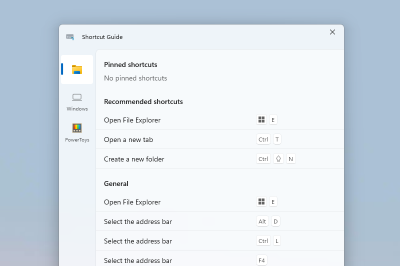
Creating Your First Layout
- Open PowerToys Settings and navigate to FancyZones.
- Click Launch layout editor to open the zone editor overlay.
- Choose a template or create custom zones by dragging dividers.
- Assign the layout to specific monitors if you use multiple displays.
- Hold Shift while dragging a window to snap it into a zone.
Common FancyZones Issues
- Zones not appearing: Ensure FancyZones is enabled and check that no other window manager conflicts (some gaming overlays interfere).
- Wrong monitor layout: Reassign layouts per monitor in the layout editor monitor tabs.
- Shift key not working: Verify the override shortcut in FancyZones settings matches your preference.
PowerToys Run Tips
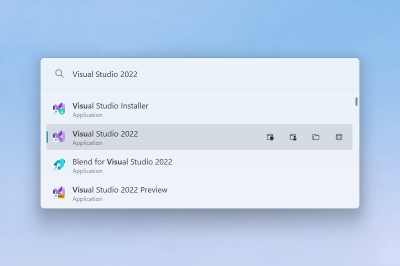
Essential Shortcuts
- Default activation: Alt + Space
- Type app names for instant launch
- Use
?for calculator - Use
.for file search
Troubleshooting
- Run not opening: Check if another app uses Alt+Space
- Slow results: Rebuild the plugin index in settings
- Missing apps: Ensure apps are in Start Menu or PATH
Resolving Locked Files with File Locksmith
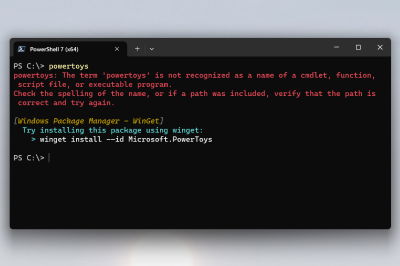
- Right-click the locked file in File Explorer.
- Select Unlock with File Locksmith from the context menu.
- Review the list of processes holding locks on the file.
- Select the blocking process and click End Task, or close the application normally.
- Retry your file operation (delete, move, or overwrite).
Warning: Ending system processes can cause instability. Only terminate processes you recognize. For deep process analysis, dedicated tools like Process Hacker provide more detail, but File Locksmith handles most everyday lock situations.
Antivirus Warnings Explained
Why Antivirus Software May Flag PowerToys
PowerToys is legitimate software developed by Microsoft. However, because it includes utilities that interact with system-level components (keyboard hooks, registry editing, hosts file modification, process termination), heuristic antivirus engines sometimes classify it as potentially unwanted software (PUA/PUP).
This is a false positive. Independent security scans consistently rate PowerToys as clean with no viruses, spyware, or malware detected.
Step-by-Step Resolution
Windows Defender SmartScreen
Click More info, then Run anyway if you have verified the digital signature and SHA256 hash. SmartScreen warnings on new releases are common until the file builds reputation.
Third-Party Antivirus (Norton, McAfee, Kaspersky, etc.)
Add PowerToysSetup.exe and the PowerToys installation directory to your antivirus exclusion list. Verify the installer hash on our Download page before adding exclusions.
Corporate / Enterprise Environments
Work with your IT department to whitelist PowerToys. Provide them the SHA256 hash, digital signature details, and point to the open-source repository for security review. PowerToys is also available through the Microsoft Store for managed deployments.
Installing and Managing Plugins
- Open PowerToys Settings and select PowerToys Run.
- Navigate to the Plugins section.
- Browse available plugins and toggle the ones you want enabled.
- Configure plugin-specific settings as needed.
- Restart PowerToys Run if plugins do not appear immediately.
Popular plugins extend PowerToys Run with web search, clipboard history, window switching, and unit conversion. Only install plugins from trusted sources within the official plugin directory.
Command Palette Guide
Command Palette provides a unified interface to access commands across all PowerToys utilities. Enable it in PowerToys Settings, assign your preferred activation shortcut, and use it to quickly toggle utilities, open settings pages, and execute common actions without navigating menus.
If Command Palette does not respond, verify it is enabled and that no other application has claimed the same keyboard shortcut.
Best Practices
Performance
- Disable utilities you do not actively use to reduce background resource usage.
- Keep PowerToys updated to the latest version for stability fixes.
- If you experience slowdowns, check for conflicts with other system utilities.
Security
- Always verify SHA256 hashes before installing updates.
- Be cautious with Hosts File Editor and Registry Preview changes.
- Review Keyboard Manager remappings to avoid accidental system shortcuts.
Workflow
- Combine Workspaces with FancyZones for complete desktop automation.
- Use Environment Variables profiles when switching between projects.
- Set up PowerToys Run as your primary application launcher.
Updates
- Enable update notifications in PowerToys Settings.
- Read release notes before updating in production environments.
- Back up Keyboard Manager and FancyZones layouts before major updates.
Still Need Help?
Check our FAQ for answers to legal, security, and usage questions, or review the Trust & Security page for integrity verification details.
View FAQ Trust & Security